
Cursor 3 AI Agent Review: Complete Guide to the New AI Coding Assistant in 2026
Remember when the most advanced coding assistance you could get was autocomplete that occasionally guessed your variable names correctly? Those days feel like using a flip phone in the age of foldable screens. I’ve been testing Cursor 3 Try Cursor for the past six weeks, and it’s making me question whether I actually know how to code anymore — in the best possible way.
If you’re drowning in boilerplate code or spending more time debugging than creating, this review might just change how you think about programming in 2026.
What is Cursor 3 and How Does It Work?
Cursor 3 is VS Code’s smarter, AI-powered cousin that graduated summa cum laude from the school of “actually understanding what you’re trying to build.” While traditional code completion tools just predict your next token, Cursor 3’s AI agent system understands entire project contexts, writes multi-file features, and debugs complex issues across your codebase.
The magic happens through “Agent Mode” — imagine having a senior developer pair-programming with you, except this one never needs coffee breaks or gets cranky during code reviews. The AI agent can:
- Analyze your entire project structure
- Generate complete features across multiple files
- Refactor legacy code while maintaining functionality
- Debug issues by tracing through call stacks
- Write tests that actually make sense (revolutionary, I know)
The underlying tech combines GPT-4o and Claude Sonnet 4.6 models, switching between them based on the task. For rapid iteration, it uses the faster GPT-4o. For complex architectural decisions, it leverages Claude Sonnet 4.6’s superior reasoning capabilities.
Key Features of Cursor 3’s AI Agent System

Autonomous Feature Building
This is where Cursor 3 gets scary good. You can literally type “build a user authentication system with JWT tokens and password reset functionality” and watch it create multiple files, set up proper routing, add security middleware, and write the frontend components.
I tested this with a React/Node.js project, and it generated 12 files with proper separation of concerns. The code wasn’t just functional — it followed modern best practices with proper error handling and input validation.
Context-Aware Debugging
The debugging agent is like having a detective on your team. It doesn’t just point out syntax errors; it analyzes the flow of your application and identifies logical issues. Last week, it caught a race condition in my async code that I’d been scratching my head over for hours.
Intelligent Code Review
Before you commit, Cursor 3 can review your changes and suggest improvements. It’s particularly good at catching security vulnerabilities and performance bottlenecks. Fair warning though — it’s a bit of a perfectionist and might suggest refactoring code that works just fine.
Multi-Language Fluency
Whether you’re writing Python, JavaScript, Go, Rust, or even that cursed PHP project you inherited, Cursor 3 adapts its suggestions to language-specific idioms and conventions. It even handles lesser-known languages reasonably well, though your mileage may vary with exotic frameworks.
Cursor 3 vs GitHub Copilot Workspace: Feature Comparison
Let me settle this debate once and for all. I’ve used both extensively, and here’s the honest breakdown. For a deeper dive into this comparison, check out our comprehensive Cursor AI Agent Glass vs GitHub Copilot Workspace 2026 analysis:
| Feature | Cursor 3 | GitHub Copilot Workspace |
|---|---|---|
| Code Completion | Excellent context awareness | Great suggestions, sometimes verbose |
| Multi-file Operations | Native agent support | Limited cross-file understanding |
| Debugging Assistance | Advanced tracing and analysis | Basic error detection |
| IDE Integration | Built-in (based on VS Code) | Requires GitHub integration |
| Pricing | Free / ~$25/mo Pro (check official site) | Free / ~$10/mo (check official site) |
| Learning Curve | Moderate (new paradigm) | Minimal (familiar workflow) |
The Verdict: Copilot Workspace is like really good autocomplete on steroids. Cursor 3 is like having an AI developer on your team. If you want familiar, incremental improvement, stick with Copilot. If you’re ready for a workflow revolution, Cursor 3 is your answer.
Cursor 3 vs Claude Sonnet 4.6 for Coding: Which is Better?
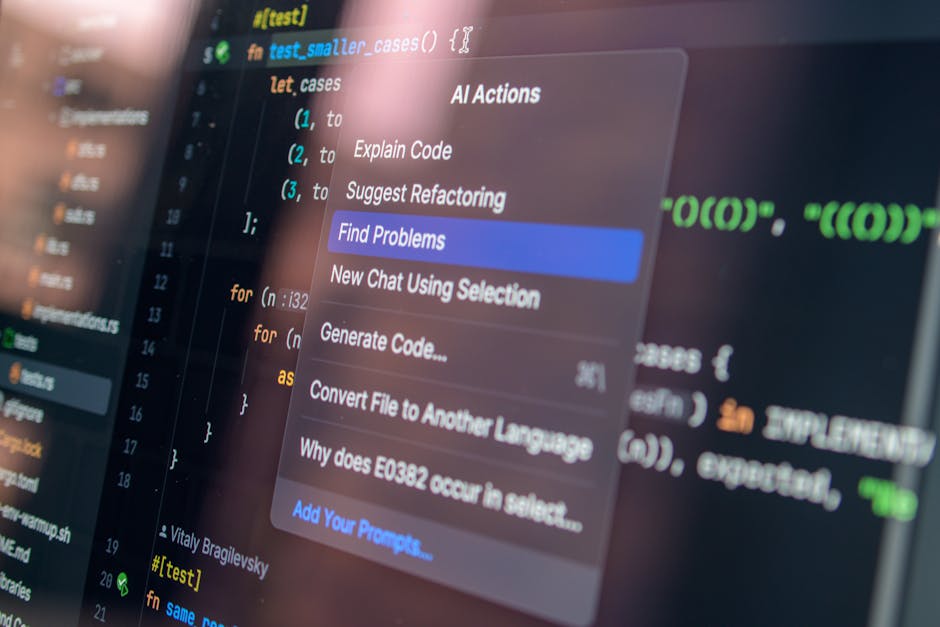
This comparison is like asking whether a race car is better than a race track. Claude Sonnet 4.6 Try Claude is the brilliant AI model that powers many coding tasks, while Cursor 3 is the specialized environment that makes that intelligence practical for development.
Claude Sonnet 4.6 Strengths:
– Superior reasoning for complex algorithmic problems
– Excellent at explaining code concepts
– Great for architectural planning
– Works anywhere (web, API, other IDEs)
Claude Sonnet 4.6 Limitations:
– No project context unless you feed it manually
– Can’t execute or test code
– Requires copy-pasting between tools
– No real-time error checking
Cursor 3’s Advantage:
– Persistent project understanding
– Integrated testing and execution
– Real-time feedback loop
– Handles mundane tasks automatically
For complex problem-solving and learning, Claude Sonnet 4.6 wins. For day-to-day development productivity, Cursor 3 is the clear winner.
Setting Up Cursor 3: Complete Installation Guide
Getting started with Cursor 3 is refreshingly simple — no PhD in prompt engineering required.
Installation Steps
- Download: Head to cursor.sh and grab the installer for your OS
- First Launch: Import your VS Code settings if you want (highly recommended)
- Account Setup: Create a Cursor account for cloud sync
- Model Selection: Choose your preferred AI models in settings
- Project Import: Open your existing projects — Cursor 3 will analyze and index them
Essential Configuration Tips
- Enable Agent Mode: Go to Settings > Features and toggle “AI Agent”
- Set Context Limits: Adjust how much of your project the AI considers (default is usually fine)
- Configure Hotkeys: I recommend Ctrl+K for quick commands and Ctrl+L for chat
- Privacy Settings: Review what data gets sent to AI models (important for commercial projects)
The whole setup takes maybe 10 minutes, and you’ll be productive immediately if you’re coming from VS Code.
Cursor 3 Pricing: Free vs Pro Plans Breakdown
Cursor 3’s pricing is actually reasonable compared to other AI coding tools, though it’s not exactly pocket change.
Free Plan:
– 200 AI completions per month
– Basic code chat
– Standard models only
– Community support
Pro Plan (~$25/month):
– Unlimited completions
– Full Agent Mode access
– Premium models (Claude Opus 4.6, GPT-o1)
– Priority support
– Advanced debugging features
Team Plans: Start around $35/user/month with additional collaboration features.
Is the Pro plan worth it? If you’re coding more than a few hours a week, absolutely. The free tier runs out embarrassingly quickly once you get hooked on the AI assistance. Pricing changes faster than my mood — check their official page for current numbers.
Real-World Testing: Cursor 3 Performance Results
I’ve been putting Cursor 3 through its paces on everything from quick scripts to full-stack applications. Here’s what I discovered:
The Good
Speed: Code generation is impressively fast. Building a CRUD API that would normally take me 2 hours took about 25 minutes with Cursor 3 doing the heavy lifting.
Accuracy: The code it generates actually works about 80% of the time without modifications. The remaining 20% usually needs minor tweaks, not complete rewrites.
Context Understanding: It remembers your project structure, coding style, and even variable naming conventions across sessions.
The Not-So-Good
Over-Engineering: Sometimes Cursor 3 creates more complex solutions than necessary. It suggested implementing a full state management system for what was essentially a simple form.
Dependency Hell: It occasionally suggests packages that are overkill or have known security issues. Always review its package suggestions.
Creative Blocks: For truly innovative problems, it tends to suggest conventional solutions. Don’t expect groundbreaking architectural insights.
Best Use Cases for Cursor 3 in 2026
After extensive testing, here’s where Cursor 3 absolutely shines:
CRUD Applications
Building standard web apps with authentication, database operations, and REST APIs. This is Cursor 3’s sweet spot.
API Development
Creating microservices, handling data validation, and implementing proper error handling across endpoints. If you’re working on API documentation alongside development, tools for AI API documentation prompts can complement Cursor 3’s code generation capabilities perfectly.
Legacy Code Modernization
Refactoring old codebases to use current patterns and frameworks. It’s surprisingly good at understanding outdated code.
Test Writing
Generating comprehensive test suites that actually test meaningful scenarios, not just happy paths.
Documentation
Creating and maintaining code documentation, including README files and inline comments.
Where It Struggles
- Highly specialized domains (AI/ML, systems programming)
- Novel algorithms or data structures
- Performance-critical code optimization
- Complex DevOps configurations
Cursor 3 Limitations and Drawbacks
Let’s be real — Cursor 3 isn’t perfect, and pretending otherwise would be dishonest.
Technical Limitations
Internet Dependency: No connection means no AI assistance. It’s jarring when you’re used to the help and suddenly flying solo.
Resource Usage: Cursor 3 can be a RAM hog, especially with large projects. My 16GB laptop sometimes struggles with multiple large codebases open.
Model Inconsistency: Different AI models have different coding styles. Switching between them mid-project can create inconsistent code.
Workflow Concerns
Over-Reliance Risk: It’s easy to become dependent on AI assistance for tasks you should probably know how to do manually. As someone who’s tested various AI tools for university assignments, I can attest that finding the right balance between AI assistance and learning fundamentals is crucial.
Code Review Blind Spots: The generated code often looks correct but might have subtle issues that only surface in production.
Learning Curve Disruption: Junior developers might skip learning fundamentals if they rely too heavily on AI assistance.
Privacy and Security
Code Exposure: Your code gets sent to external AI models. Not ideal for proprietary or sensitive projects.
Compliance Issues: Some enterprises have strict policies about AI tools accessing company code.
If you’re working on a side project or open-source code, these concerns are minimal. For enterprise development, you’ll need to check your company’s AI tool policies.
Should You Switch to Cursor 3? Final Verdict
After six weeks of daily use, here’s my brutally honest take: Yes, but with conditions.
You should definitely try Cursor 3 if:
– You’re building standard web applications or APIs
– You spend significant time on boilerplate code
– You want to experiment with AI-assisted development
– You’re comfortable with the learning curve
Stick with your current setup if:
– You work with highly sensitive or proprietary code
– You primarily do system-level programming or embedded development
– You’re on a tight budget and the free tier won’t cut it
– You prefer full control over every line of code
My Personal Take: I’m keeping Cursor 3 as my primary editor for new projects. For maintaining existing codebases, I still reach for traditional tools sometimes, but that’s changing as I get more comfortable with the AI agent workflow.
The productivity gains are real, but they come with a mental shift in how you approach development. Instead of writing everything from scratch, you become more of a director — specifying what you want and refining the AI’s output.
For most developers in 2026, that’s not just the future of coding — it’s the present, and Cursor 3 is leading the charge. If you’re looking to expand your toolkit with other AI solutions, exploring best AI note-taking tools for students can help streamline other aspects of your development and learning workflow.
FAQ
Can Cursor 3 work offline?
No, Cursor 3 requires an internet connection for AI features. The editor itself works offline, but you’ll lose all the AI assistance that makes it special.
Does Cursor 3 support my programming language?
Cursor 3 supports all major programming languages and most frameworks. It’s particularly strong with JavaScript, Python, Go, Rust, and Java. Less common languages get basic support but might lack framework-specific knowledge.
Is my code safe with Cursor 3?
Your code is sent to AI models for processing, but Cursor states they don’t store or train on user code. For highly sensitive projects, consider using local AI models or traditional IDEs. Always check your organization’s AI tool policies.
How does Cursor 3 compare to other AI coding tools like Tabnine or CodeWhisperer?
Cursor 3 is more comprehensive than tools like Tabnine or CodeWhisperer . Those focus primarily on code completion, while Cursor 3 offers full AI agent capabilities including multi-file operations, debugging, and architectural assistance. The trade-off is complexity and cost.