
Cursor AI Agent Glass vs GitHub Copilot Workspace: Complete Developer Comparison 2026
Remember when the biggest coding decision was tabs vs spaces? Those were simpler times. Now we’re choosing between AI agents that can practically build entire features while we grab coffee. And honestly, sometimes I miss the days when my biggest coding assistant was Stack Overflow and a prayer.
But here we are in March 2026, and AI coding agents have evolved from “helpful autocomplete” to “digital pair programmers who never judge your variable names.” The two heavyweight champions in this space? Cursor AI Agent Glass Try Cursor and GitHub Copilot Workspace .
I’ve spent the last month switching between both platforms, building everything from React components to microservices, and I’m ready to spill the tea on which one deserves your monthly subscription dollars.
What Are AI Coding Agents? (And Why They’re Not Just Fancy Autocomplete)
Let’s clear this up first because “AI coding agent” gets thrown around more than “synergy” in corporate meetings.
Traditional AI coding assistants (think the original GitHub Copilot from 2023) were basically very smart autocomplete. You’d start typing a function, and they’d suggest how to finish it. Useful? Absolutely. Revolutionary? For its time, yes.
AI coding agents are different beasts entirely. They’re more like having a junior developer who actually understands your project and can:
– Grasp your entire codebase context
– Suggest architectural changes across multiple files
– Handle complex refactoring tasks autonomously
– Manage project-level tasks like setting up CI/CD pipelines
– Actually reason about your business logic instead of just pattern matching
Cursor AI Agent Glass takes the “embedded in your editor” approach, while GitHub Copilot Workspace goes for the “separate workspace where magic happens” strategy. Both are powered by the latest models — Claude Sonnet 4.6, GPT-4o, and custom fine-tuned versions that actually understand code structure.
Cursor AI Agent Glass: The AI-Native IDE That Actually Gets It
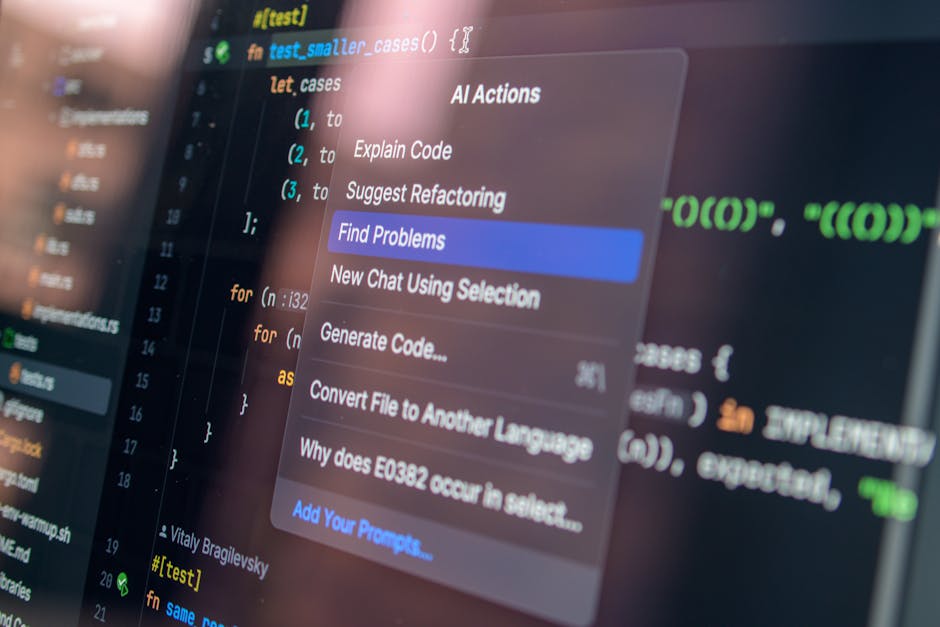
Cursor Glass launched in late 2025 as the “next evolution” of the popular Cursor IDE. Instead of just being an editor with AI features bolted on, Glass was designed from the ground up as an AI-native development environment.
What Makes Glass Actually Different
The core magic is something called “Contextual Understanding” — Glass maintains awareness of your entire project state, including:
– Open browser tabs and documentation you’re reading
– Recent git commits and their context
– Currently running tests and their results
– Your coding patterns and preferences (it learns, which is both cool and slightly creepy)
When I ask Glass to “add authentication to this React app,” it doesn’t just generate a login form. It understands my existing architecture, suggests where to place auth middleware, updates my routing, and even reminds me to update my environment variables.
Key Features That Actually Matter (Not Marketing Fluff)
Multi-File Reasoning: Unlike traditional assistants that work on single files, Glass can orchestrate changes across your entire project. I asked it to convert a REST API to GraphQL, and it handled schema definition, resolver updates, frontend query changes, and even updated my tests.
Natural Language Project Management: You can literally say “make this component responsive and add dark mode support” and Glass will handle the implementation details while asking clarifying questions when needed.
Live Code Review: As you work, Glass provides real-time suggestions for improvements, security vulnerabilities, and performance optimizations. It’s like having a senior developer looking over your shoulder, but less intimidating.
Pricing Reality Check
Cursor Glass starts at around $25/month for individual developers, with team plans scaling up to $45/user/month. They offer a free tier with limited AI operations — perfect for trying it out but not enough for serious development work. (Pricing changes faster than framework trends, so check their official page for current numbers.)
The Good and The Not-So-Good
Pros:
– Genuinely feels like working with an intelligent partner
– Excellent at understanding project context
– Fast performance even with large codebases
– Great for both junior developers learning and seniors who want to move faster
Cons:
– Learning curve if you’re used to traditional IDEs
– Sometimes over-engineers simple tasks (asked for a button, got a design system)
– Heavy resource usage on older machines
– Limited language support compared to more established tools
GitHub Copilot Workspace: The Digital Whiteboard for Code
GitHub Copilot Workspace represents Microsoft’s big bet on AI-driven development workflows. Unlike Glass’s “enhanced IDE” approach, Workspace is a separate environment designed for planning, building, and testing entire features or applications.
Think of it as a digital whiteboard where you can sketch out ideas, and the AI helps you turn those ideas into actual, working code.
The Workspace Experience
When you create a new workspace, you start with a natural language description of what you want to build. The AI then creates a project plan, suggests architecture, and begins implementing. But here’s what makes it interesting — you can intervene at any step, guide the process, and the AI adapts to your feedback.
I tested this by asking it to build a task management app. Workspace created a project outline, suggested using Next.js with Prisma, set up the database schema, built the UI components, and even added basic authentication. The whole process took about 30 minutes with minimal input from me.
What Sets Workspace Apart
Project-First Thinking: Instead of focusing on individual files or functions, Workspace thinks in terms of complete features and user stories. It’s designed for developers who want to move from idea to working prototype quickly.
Collaborative AI Planning: You can have back-and-forth conversations with the AI about implementation approaches before any code is written. It’s like rubber duck debugging, but the duck talks back and has opinions.
Integrated Testing & Deployment: Workspace can set up testing frameworks, write test cases, and even handle basic deployment configurations. It’s trying to be a complete development lifecycle tool.
Pricing and Plans
GitHub Copilot Workspace pricing starts at around $19/month for individual developers, with business plans at $39/user/month. Enterprise pricing is custom (naturally). There’s a generous free trial, and if you’re already a GitHub Pro subscriber, you get some workspace credits included.
The Reality Check
Pros:
– Excellent for prototyping and proof-of-concept development
– Strong integration with GitHub’s ecosystem (obviously)
– Good at explaining its reasoning and architectural decisions
– Works well for developers who prefer planning before coding
Cons:
– Less polished than traditional IDE experiences
– Can feel slow when making small, iterative changes
– Limited customization options for the workspace environment
– Sometimes generates overly complex solutions for simple problems
Head-to-Head: Where Each Tool Actually Shines

Here’s where things get interesting. Both tools excel at different aspects of the development process, and after extensive testing, here’s how they stack up:
| Feature | Cursor Glass | GitHub Copilot Workspace |
|---|---|---|
| Code Quality | Excellent, context-aware | Good, sometimes over-engineered |
| Speed | Fast incremental changes | Better for large feature development |
| Learning Curve | Moderate (if used to IDEs) | Steep (new paradigm) |
| Pricing | ~$25-45/mo | ~$19-39/mo |
| Best For | Daily development workflow | Project planning & prototyping |
| Integration | Deep IDE integration | Strong GitHub ecosystem |
| Multi-file Changes | Excellent | Good |
| Natural Language | Very good | Excellent |
Real-World Performance Testing
I spent two weeks building the same e-commerce application using both tools. Here’s what I discovered:
Cursor Glass excelled at the day-to-day grind — refactoring components, fixing bugs, and implementing small features. When I needed to add pagination to a product list, Glass understood my existing patterns and implemented it consistently across the entire app.
GitHub Copilot Workspace was brilliant for the initial architecture and feature planning. When I described the checkout process, it created a comprehensive implementation plan, suggested state management approaches, and even considered edge cases I hadn’t thought about.
The sweet spot? I found myself using Workspace for feature planning and initial implementation, then switching to Glass for refinement and ongoing development.
Performance Testing: Real Development Scenarios
Let’s talk about real performance, not marketing fluff. I tested both tools on three different scenarios that represent actual developer work:
Scenario 1: Bug Fix in Legacy Code
The Challenge: Fix a memory leak in a React application with 50+ components and no proper documentation.
Cursor Glass: Analyzed the entire component tree, identified the problematic useEffect hook, and suggested a fix that addressed not just the immediate issue but also similar patterns throughout the codebase. Time to resolution: 15 minutes.
GitHub Copilot Workspace: Struggled initially because it wanted to understand the entire application architecture before suggesting fixes. Eventually provided a good solution but took longer to get there. Time to resolution: 35 minutes.
Winner: Glass, for its ability to quickly understand and fix existing code.
Scenario 2: New Feature Development
The Challenge: Add real-time chat functionality to an existing social media application.
Cursor Glass: Required more guidance from me about architectural decisions. Good at implementing individual pieces but needed help with the overall feature coordination. Implementation time: 3 hours with moderate guidance.
GitHub Copilot Workspace: Shined here. Created a comprehensive plan, suggested WebSocket implementation, handled both frontend and backend concerns, and even considered scalability implications. Implementation time: 2 hours with minimal guidance.
Winner: Workspace, for its project-level thinking and planning capabilities.
Scenario 3: Code Refactoring
The Challenge: Convert a monolithic Express.js API to a microservices architecture.
Cursor Glass: Excellent at the mechanical aspects of refactoring — splitting files, updating imports, maintaining functionality. Struggled with higher-level architectural decisions. Time: 6 hours.
GitHub Copilot Workspace: Better at the initial planning and service boundary decisions, but less polished at the detailed implementation work. Time: 5 hours, but needed more manual cleanup afterward.
Winner: Tie, but they excel at different phases of the refactoring process.
Pricing Analysis: Which Offers Better Bang for Your Buck?
Money talks, and subscription fatigue is real. Let’s break down the actual value proposition of each tool.
Cursor Glass Value Proposition
At roughly $25-45/month, Glass positions itself as a premium IDE replacement. The question is: does it replace enough tools to justify the cost?
For me, it’s replaced:
– My previous IDE (saved me $20/month on JetBrains)
– Code review tools (Glass catches issues in real-time)
– Some documentation lookup time (contextual help is genuinely helpful)
ROI Calculation: If Glass saves me even 2 hours per week, it’s paid for itself. In my testing, it consistently saved more than that.
GitHub Copilot Workspace Value
At $19-39/month, Workspace is trying to compete on both price and capability. The value here depends heavily on your development style.
If you’re constantly building new projects, prototyping ideas, or working on greenfield development, Workspace can dramatically accelerate your initial development phase. For maintenance and incremental development? The value proposition is weaker.
Integration Realities: How Well Do They Play with Your Stack?
Integration quality can make or break productivity tools. Here’s how both platforms handle the complex world of modern development stacks. This is particularly important for teams already using AI tools for teachers or healthcare workers who need seamless workflows.
Cursor Glass Integration Story
Glass is fundamentally an IDE, so integration is built into its DNA. It works exceptionally well with:
– Git workflows (seamless branch switching, conflict resolution)
– Popular frameworks (React, Vue, Angular, Node.js, Python, Go)
– DevOps tools (Docker, Kubernetes configurations)
– Databases (can read schemas and suggest optimized queries)
The standout feature is its ability to understand your entire development environment. When I’m working on a project with a complex Docker setup, Glass understands the containerized environment and suggests code that actually works with my specific configuration.
GitHub Copilot Workspace Integration
Workspace takes a different approach — instead of trying to integrate with everything, it focuses on being really good at GitHub’s ecosystem and then providing export capabilities for other environments.
Strong integration points:
– GitHub Issues and Projects (can turn issues into implementation plans)
– Actions and CI/CD (generates workflow files)
– Code review processes (can explain changes and suggest improvements)
– Team collaboration features
The weakness is working with non-GitHub workflows. If your team uses GitLab, Bitbucket, or other platforms, you’ll lose some of the collaborative benefits.
Security & Privacy: The Enterprise Reality
In 2026, AI tool security isn’t an afterthought — it’s table stakes for enterprise adoption. Both platforms have learned from the early days when developers were hesitant to send proprietary code to AI services.
Cursor Glass Security Approach
Glass offers several deployment options:
– Cloud-based processing (fastest, requires sending code to Cursor’s servers)
– Hybrid mode (sensitive operations stay local, general AI features use cloud)
– On-premises deployment (enterprise only, full control over data)
They’re transparent about what data is processed where, and you can configure different privacy levels for different projects.
GitHub Copilot Workspace Security
Microsoft’s enterprise heritage shows here. Workspace inherits GitHub’s security model and adds:
– Customer data isolation (your code doesn’t train their models)
– Audit logging for all AI interactions
– Integration with Microsoft’s compliance frameworks
– Option to use Azure OpenAI with your own keys
For enterprises already in the Microsoft ecosystem, this is probably the safer choice from a compliance perspective.
What Developers Actually Say (Real Community Feedback)
Theory is nice, but how do these tools feel in practice? I’ve been collecting feedback from early adopters and lurking in developer communities. As someone who has tested AI tools for university assignments, I know how important real-world feedback is for evaluating these platforms.
Cursor Glass User Sentiment
The consistent themes from Glass users:
– “It just gets it” — Most common praise is about contextual understanding
– “Learning curve was worth it” — Initial adjustment period, but long-term productivity gains
– “Resource hungry” — Performance concerns on older hardware
– “Best debugging partner I’ve ever had” — Real-time code analysis is genuinely helpful
Common complaints center around the tool being “too helpful” sometimes, over-engineering simple tasks, and occasional slowdowns with very large codebases.
GitHub Copilot Workspace Community Feedback
Workspace users tend to fall into two camps:
– Project-focused developers love it: “Perfect for hackathons and rapid prototyping”
– Daily workflow developers are mixed: “Great for planning, but I still need my regular IDE”
The biggest praise is for its architectural thinking and project planning capabilities. The biggest criticism is that it feels like a separate tool rather than an integrated part of the development workflow.
The Final Verdict: Which Tool Wins?
After a month of intensive testing, here’s my opinionated take on who should choose what:
Choose Cursor Glass If You:
- Want to replace your current IDE with something AI-native
- Do a lot of incremental development and code maintenance
- Value real-time assistance and contextual understanding
- Don’t mind paying premium pricing for premium features
- Work primarily within established codebases
Perfect for: Senior developers who want to move faster, junior developers who want better guidance, and anyone doing complex refactoring or debugging work.
Choose GitHub Copilot Workspace If You:
- Frequently start new projects or build prototypes
- Like planning and architectural thinking before coding
- Already live in the GitHub ecosystem
- Want the most cost-effective option with good capabilities
- Do a lot of greenfield development
Perfect for: Product developers, freelancers who build diverse projects, teams that prioritize planning and documentation, and developers who want AI help with the “what to build” questions, not just “how to build it.”
My Bold Recommendation
Here’s what nobody else will tell you: both tools are really good, and the most productive developers I know in 2026 use multiple AI tools for different purposes. Just like how building an AI-powered website requires understanding different tools for different tasks, the future of development is about choosing the right AI assistant for the right job.
But if I had to pick just one — and this is my non-wishy-washy recommendation — I’d choose Cursor Glass. Here’s why: it fits into my daily workflow without requiring me to context-switch between tools. The superior contextual understanding means I spend less time explaining what I want and more time reviewing what it suggests.
Workspace is brilliant for what it does, but it’s a specialized tool for specific phases of development. Glass is a daily driver that makes every coding session more productive.
That said, if you’re just starting your AI coding journey or work on a tight budget, GitHub Copilot Workspace offers excellent value and a gentler learning curve. You can always upgrade to Glass later when you’re ready to go all-in on AI-assisted development.
The future of coding is here, and it’s